Multi-Dealership Manager
Every store keeps its own DealerShark. Multi-Dealership Manager layers a group dashboard, a ranked Compare scorecard, targets, reports and a Monday-morning digest on top, and lets your stores search each other's stock, trade units and pass leads - cut down automatically to the stores each person may see.
What the module covers
- Add a store by URL and key
- Permissions per store
- Automatic hourly sync
- Group dashboard
+ 12 more
Your stores keep running on their own
Not a merged CRM across stores - a view layered on top of the DealerShark each store already runs.
-
Connected, not merged
Each store keeps its own DealerShark account, its own data and its own sign-in. A store is added with its web address and an API key limited to Group Reporting - nothing moves and nothing merges.
-
Scoped to the right person
Each person sees only the stores they have been given. A store manager sees their store, the group owner sees all of them. Stores, Targets and Settings stay with the module's admin.
-
Synced on its own, every hour
An automatic hourly sync pulls each store's last 35 days, with a longer catch-up the first time a store connects. A store that is briefly unreachable keeps its last good numbers rather than showing a gap.
-
A digest before anyone asks for one
Every Monday, anyone who turned it on gets one email about their own stores: last week against the week before, progress against target, and what deserves a look.
Group dashboard
One screen for every store you run
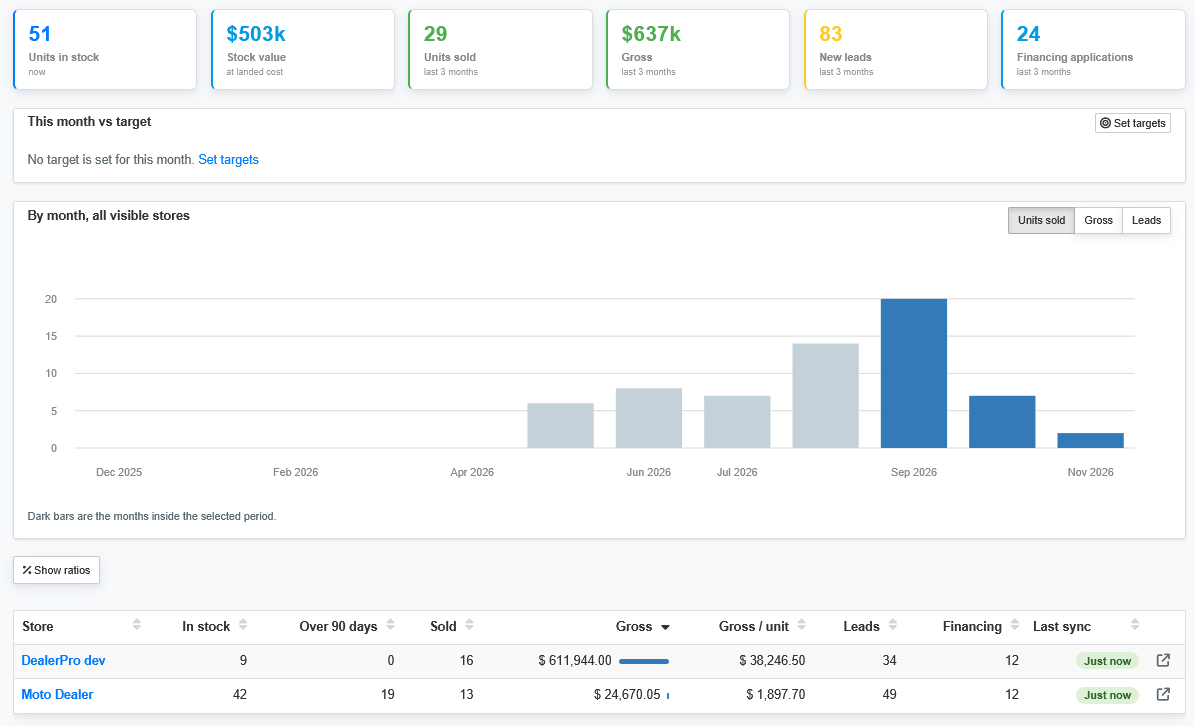
Six tiles and a monthly chart for the whole group, the store comparison table underneath, and this month measured against the target you set - all cut down automatically to the stores the person looking at it may see.
- Six group tiles and a monthly trend chart
- A ranked store comparison table
- This month against target, per store and for the group
Compare stores
See which store needs a look, at a glance
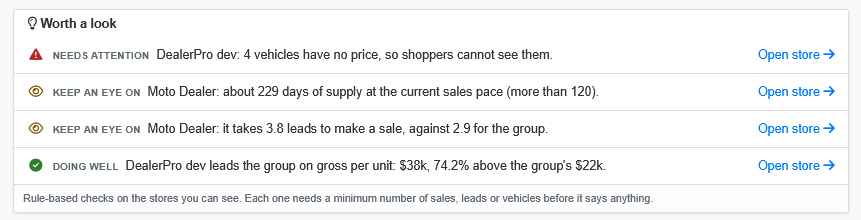
Every visible store and the group, ranked side by side against the previous period and against last year. Switch to the make mix to see each store's share of stock or sales by make against the group's own share, to stock balance for suggestions on which store could pass a make to another, or to Versus to put two to four stores on the same chart.
- Ranked scorecard against the last period and against last year
- A heatmap of stock and sales by make, store against group
- Stock-balance suggestions you can turn into a dealer trade
Reports & targets
The numbers land in an inbox, not just a dashboard
Twelve group reports across sales, stock and leads - from year over year and target attainment to stock turn, inventory health and how fast each store answers its leads - each with its own CSV and PDF. Set monthly unit and gross targets per store, and let the Monday digest and a one-click PDF for the month that just closed carry the rest.
- Twelve reports on sales, inventory and leads, each exportable to CSV and PDF
- Monthly unit and gross targets, store by store, with attainment month by month
- A finished PDF for a closed month, and a weekly email that needs no login

What the module covers
Built from the same numbers your reports and dashboard already use, so the group total and the store detail never disagree.
- Add a store by URL and key
- Each store runs Group Reporting, which serves its inventory, sales, leads, financing and service figures to the hub. The store makes an API key limited to Group Reporting and hands you the key and the address. The key only reads unless the store lets it file dealer trades and hand-offs, and the store can require every call to be signed. Test the connection before it goes live, and turn a store off without deleting its history. The store can withdraw access at any time by switching off the key.
- Permissions per store
- Decide which people see which stores. Stores, Targets and Settings stay with the group admin; everyone else sees exactly the stores they were assigned.
- Automatic hourly sync
- Each store is pulled every hour, with a longer first sync so a new store's charts are not a blank page. A failed sync retries with a growing delay and keeps the last good data rather than showing a gap.
- Group dashboard
- Six tiles, a monthly chart and a store comparison table, cut down to the stores the signed-in person may see. Open a store to see its recent sales split between new and used.
- Compare scorecard
- Every store and the group, ranked against the previous period and against last year, with callouts for the stores that moved the most.
- Stock balance suggestions
- Rule-based suggestions for which store could pass vehicles of a make to another. Nothing moves on its own: a suggestion becomes a move when someone requests a dealer trade.
- Group inventory search
- Search the stock of every store you can see at once. Each store is asked live, not read from the last sync. One list with photo, stock number or VIN, mileage, colour, days in stock and price, plus cost where a store shares it, with links to the vehicle. A store that does not answer is named, with the reason.
- Dealer trades
- Request a vehicle from the search: the buying store, a proposed price (cost when left blank) and a note. The selling store accepts or declines, then invoices the buying store, and the unit is booked into the buying store's inventory with the purchase posted. The Trades page follows every request and re-sends one a store never received.
- Lead hand-offs
- A store sends a lead to a sister store from the lead's page, only with the customer's consent (Law 25, PIPEDA). The hub creates it at the receiving store, matched to an existing customer by email and then phone, with the note attached, and confirms delivery to the sender. A failed delivery is retried and listed on the Hand-offs page.
- Make mix heatmap
- Each store's share of stock or sales by make, against the group's own share, so an over- or under-stocked make stands out right away.
- Side-by-side (Versus)
- Put two to four stores on the same chart, month by month, in actual numbers or indexed to the same scale for stores of very different sizes.
- Fixed ops side by side
- For stores running the service module: repair orders, hours, hours per RO, effective labour rate, labour, parts and other gross, sales and gross %, per store and for the group.
- Monthly targets
- Units and gross, set per store per month. Copy a month forward or fill every box with one percentage, then track progress as the month runs.
- Twelve group reports
- Sales, inventory and lead reports across every store you can see, each exportable to CSV and PDF. Every one is explained below.
- A Monday digest, automatically
- Each person who turns it on gets one email about their own stores: last week against the week before, progress to target, stores that need a look, and stock that could move.
- Salesperson leaderboard
- Salesperson figures are off by default, since names are personal data: each store decides whether its own leave the store, and the group leaderboard is visible only to the group admin. A deal split between two salespeople credits each their share.
The reports
Twelve reports, each run for the period you choose and cut down to the stores you may see.
Sales
- Sales by store and month
- Units, revenue and gross by month, with one column per store under each measure so stores sit side by side. Pick which stores to show.
- Year over year
- Each store's units, gross and leads in the period against the same dates a year earlier, then the group month by month.
- Target attainment by month
- Every closed month in the period: what each store sold against its unit and gross targets.
- Salespeople
- Units and gross by salesperson, with their store. Group admin only, and only for stores that choose to share names.
Inventory
- Aged inventory by store
- Each store's stock by age - past 60, 90 and 120 days - as it stood at the end of the period.
- Stock turn by month
- Stock at month end, units sold, how fast stock turns, days of supply, and how much of it is over 90 days.
- Inventory health
- What to fix in each store's stock: vehicles with no price, vehicles missing from the website, and the oldest units.
Leads
- Leads by store and source
- Each store's new leads in the period, then how they split by source.
- Lead handling by month
- New leads, sales, how many leads became sales, financing applications, and how fast leads got a first answer.
- Lead sources across the group
- For each source: leads, units sold, conversion and gross, for the whole group and then store by store.
- Sales and leads by day of the week
- Which days sell and bring in leads, across the group and per store - for staffing and ad timing.
Plus Data coverage and syncs: how completely each store reported and how its syncs went, so you know a comparison is fair before you trust it. Every report exports to CSV and PDF.
Getting a group connected
-
We connect your stores
Each store turns on Group Reporting and makes a key limited to it. We add its address and key, and test it before it goes live.
-
You choose who sees what
Each person is assigned the stores they may see; the group owner keeps Stores, Targets and Settings.
-
The sync runs on its own
Every hour, automatically, with a longer first pull so a new store does not start from a blank page.
-
The group shows up where you already look
The dashboard, a Monday email, and a PDF for the month that just closed.
Available as an add-on for
- Dealer groups running DealerShark at two or more stores
Priced per connected store, whatever plan that store is on, with Group Reporting at each store included. Book a demo and we'll put a number on it for your group. See Pricing
See your group on one screen
A 30-minute demo, built around a group your size - the dashboard, Compare and the Monday digest, before you connect a single store.